|
Welcome to the latest edition of BFS Insider News, where we share key updates from Contracts & Grants, Financial Services, Procure to Pay, Travel & Entertainment, and more! |
|
|---|
|
Endowment Distributions
Update
The annual Endowment distribution financial journals were posted into the FY26 December ledgers for FY25 distributions using the endowment fund and department activity and function codes.
New this year, departments are required to budget these endowments using the applicable form(s) provided by the Central Budget Office.
|
|
|---|
|
STAR, PFCB, and PCC
Updated Guidance
Effective FY26, STAR, PFCB (Paid Family Care and Bonding), and PCC (Postdoc Child Care) credits will be posted quarterly. Additionally, Departments should change the COA to 19900 / default project for any STAR, PFCB, or PCC costs that would have otherwise been charged to a grant.
This change reflects the following considerations:
-
STAR costs are not allowable on Contracts and Grants.
-
PCC costs are only allowable on some awards under limited circumstances.
-
PFCB costs should not be charged to a grant when an individual is not working (e.g., on leave). In most cases, another employee is backfilling that effort to move the grant forward, so these costs are not appropriate to charge to Contracts and Grants.
As a result, these expenses should not be charged to C&G.
What to do going forward:
If you know these expenses are coming and the individual’s regular salary is charged to a grant, please charge the applicable STAR, PFCB, or PCC expenses to COA 19900 / default project. These costs will be reimbursed back to that COA.
|
|
|---|
|
|
Mass Billing Available
Web Recharge
We are excited to introduce a new Mass Billing feature in Web Recharge. This update allows departments to submit multiple billing items at once, significantly streamlining the data entry process for high-volume transactions.
What does this mean? Users can now upload a CSV file containing multiple orders rather than entering them individually. This feature is designed to support efficiency when processing numerous charges for a single service provider.
For complete step-by-step instructions and to access the CSV template, please refer to the Web Recharge - Mass Billing Guide.This is now also available on the Training Resources page of the BFS website (link).
|
|
|---|
|
Concur Employee Profile Inactivation
90 Day Inactivation Rule Explained!
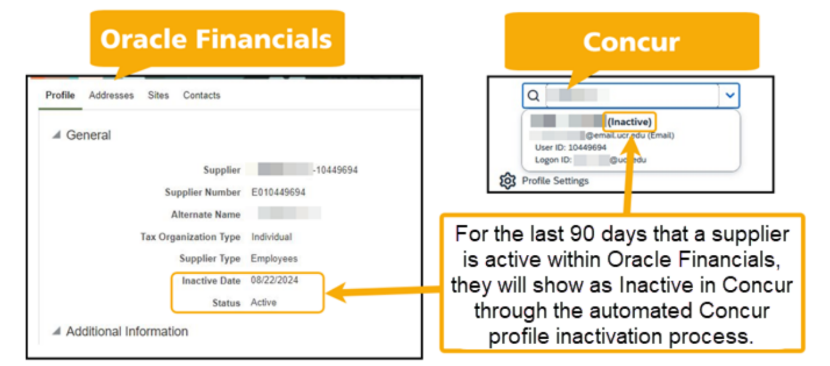
Have questions about the Concur 90 Day Inactivation Rule? And what Concur and Oracle Financials look like during this timeframe?
- What is it? If an Oracle Employee Supplier record has an inactive date up to 90-days in the future, they will display as
inactive in Concur through the automated Concur Profile inactivation process.
- Are they inactive in Oracle Financials during this time? No, in Oracle Financials, the employee supplier will show as Active during these last 90 days.
- What is the reason for this? The timeframe between the two systems allows Concur Delegate users to take action on behalf of the "inactive employee" and process any open expense entries within 75 days (this allows for a 15-day window between Concur and Oracle).
|
|
|---|
|
2026 Hotel Rates for UCR
Procurement Website Update
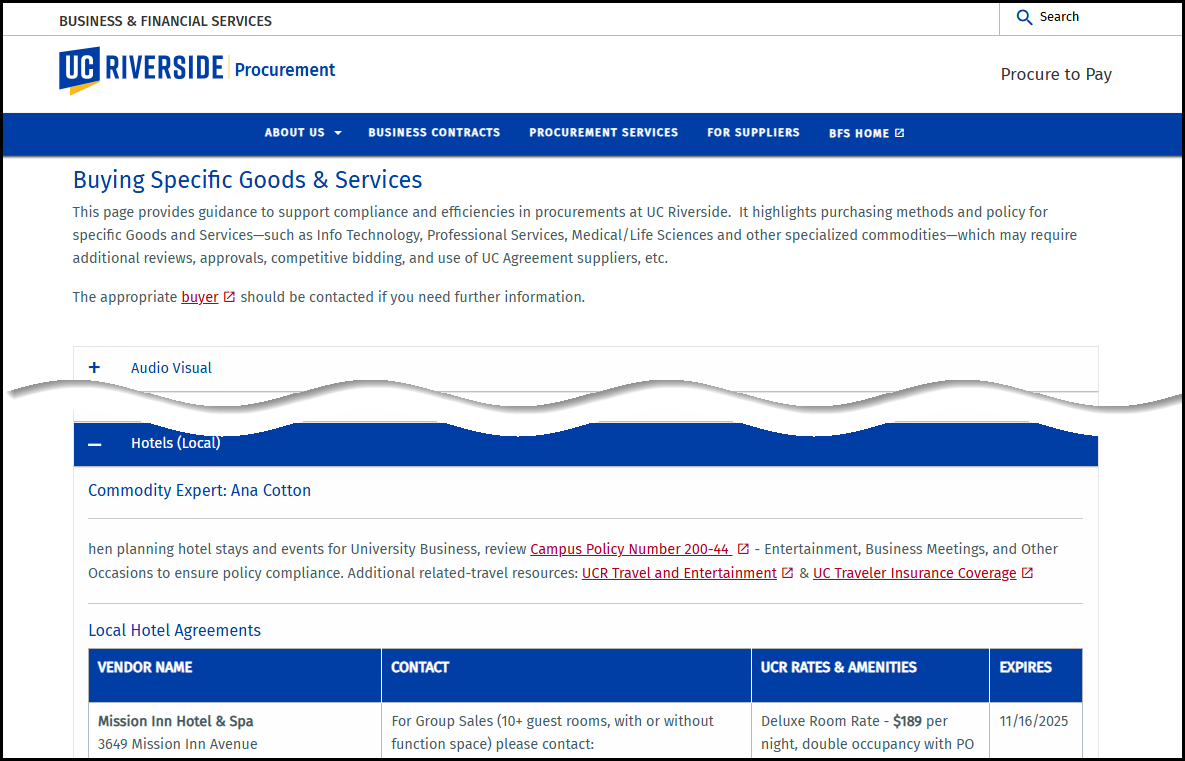
The 2026 hotel rates for UCR have been confirmed and the list is now updated for campus users. Please visit the procurement website to access the newly published rates for your upcoming travel (link).
|
|
|---|
|
The Mission Inn Electronic Pre-Arrival Check-In
UCR will not use the new system - do not share links
The Mission Inn has implemented a new electronic pre-arrival check-in process. This link is sent via an email to the Department making the reservation and also sent via text if a phone number has been provided. Unfortunately, this process will not work for UCR. The new system allows the guest to add charges to their stay that are not authorized on the POs (i.e., upgrading the room type, paying the resort fee, adding late check-out and other charges).
The Mission Inn has been notified that UCR will not be using this new system and will proceed with the standard check-in process as always.
For now, please do not forward the pre-arrival check-in links to your guests. If you have any further questions, please contact Ana Cotton.
|
|
|
|
|
Requesting a Supplier
Quick Reference Guide Updated
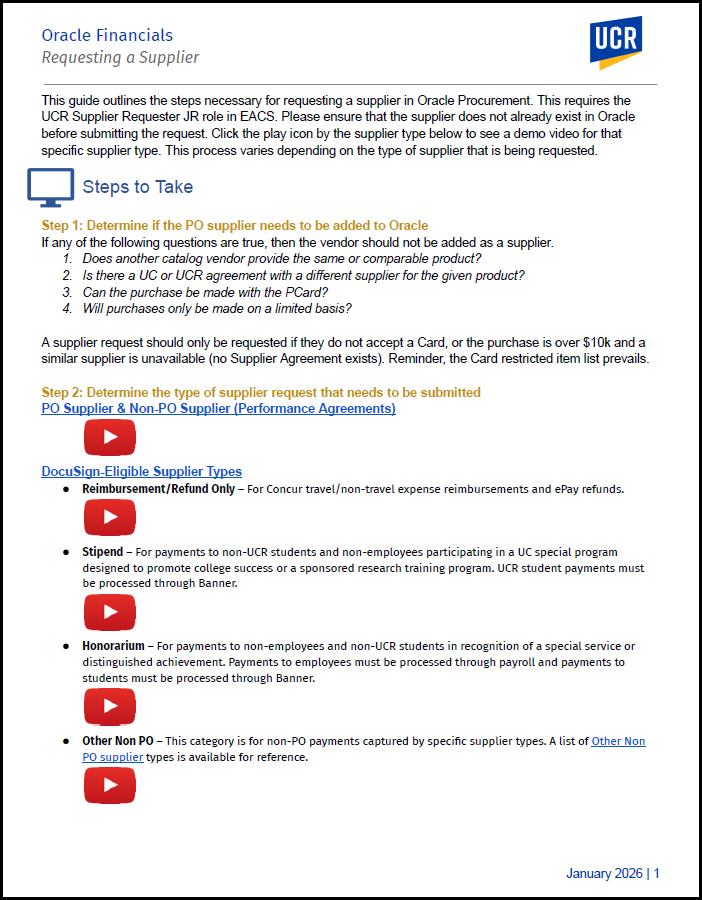
The Requesting a Supplier guide ( link) has been updated to clearly outline the process for Supplier Requests for PO Suppliers, DocuSign-Eligible Supplier types, and Performance Agreements (the only Non-PO Supplier type which is not docusign eligible).
The guide gives a step-by-step process for the requests (including video demonstrations), shares what happens once the request is submitted, and outlines which suppliers are considered Other Non-PO suppliers.
|
|
|
|
|
Need to know what roles a user has?
EACS Accountability Report
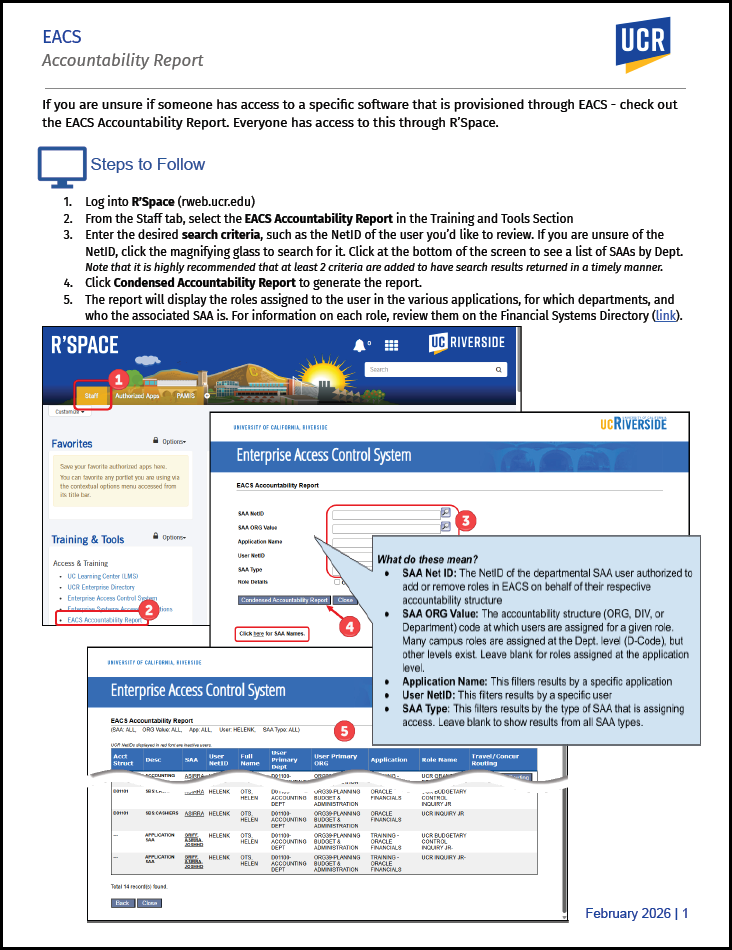
If you are unsure if someone has access to a specific software that is provisioned through EACS - check out the EACS Accountability Report. Everyone has access to this through R’Space.
The Accountability Report guide ( link) walks through the process, shares details on what the search fields are, and also links to the Financial Systems Directory ( link) where information on each role can be found. |
|
|
|
|
Procurement Resources
Updates to the Procurement Process Improvement Slide Decks
|
|
|
|
|
Oracle Financials - 26A Quarterly Update
Completed February 21, 2026
The following are new features now available within Oracle Financials. Many have come through with the quarterly update that completed this last weekend.
Updates & Features:
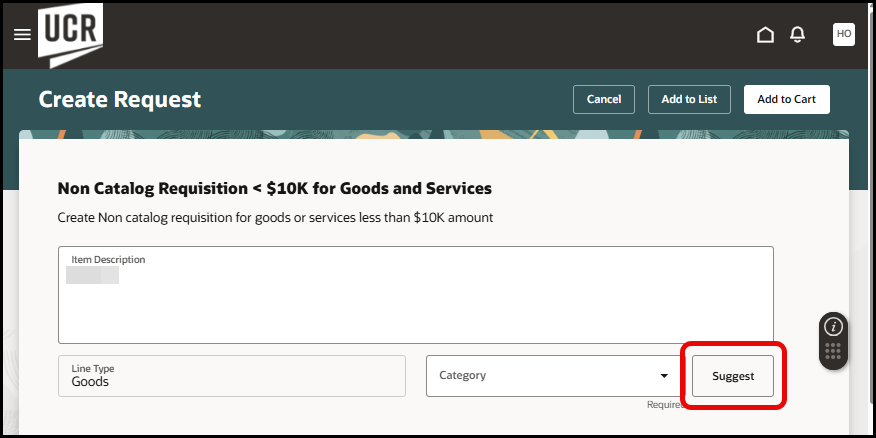
- Suggest Purchase Category: The "Suggest" button is available on the non-catalog request forms. Click it for Oracle to give a recommendation of the best-fit purchasing category based on the item's description.
|
|
|---|
|
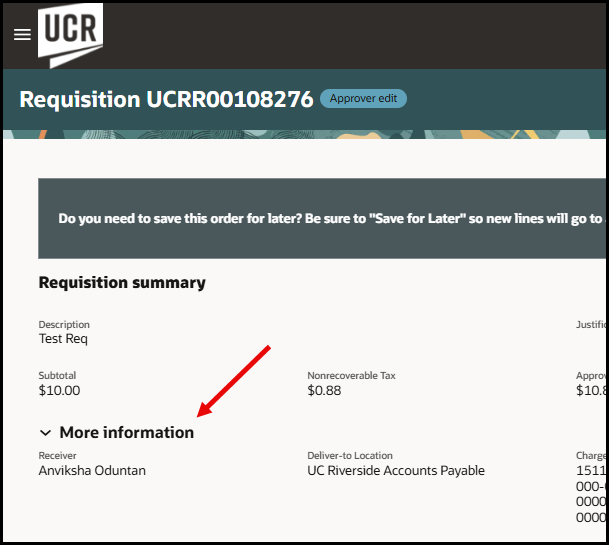
- "More information" section expanded by default: Previously, the "More information" section on requisitions was always collapsed and had to be expanded for users to review. Now it will default to being open.
|
|
|
|
|
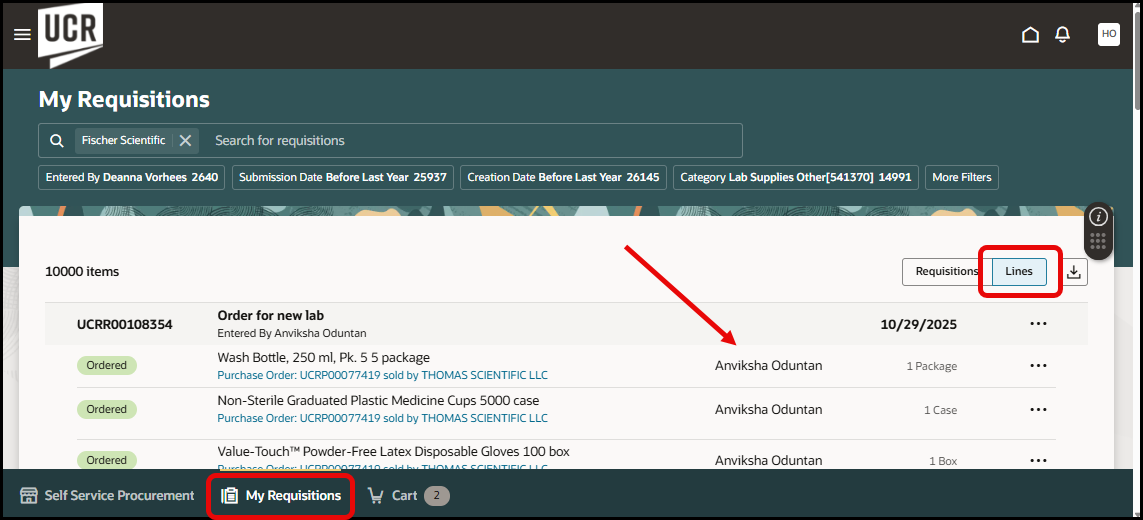
- See Buyer Names at line level: On the
My Requisitions page, the buyer name will now display when viewing by line. This is much quicker than having to drill-into the requisition to see the assigned buyer.
|
|
|---|
|
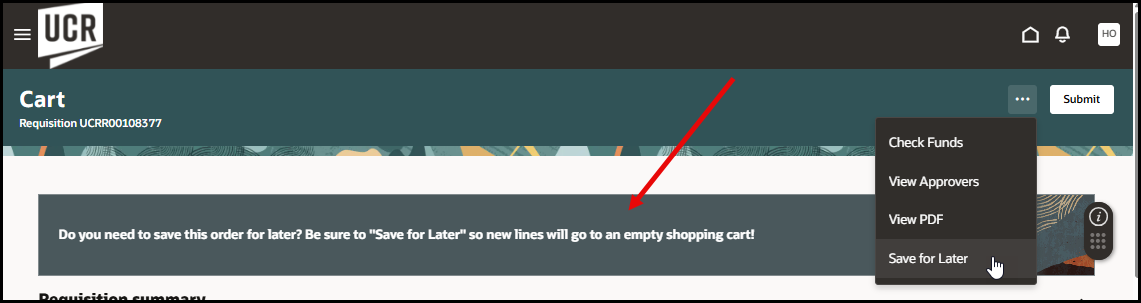
- Training Tip on Saving Requisition: Requisitions can be saved for later, which allows for the transactor to start fresh with an empty shopping cart. To highlight this, a training tip has been added to the cart to help ensure users are aware of this feature.
|
|
|---|
|
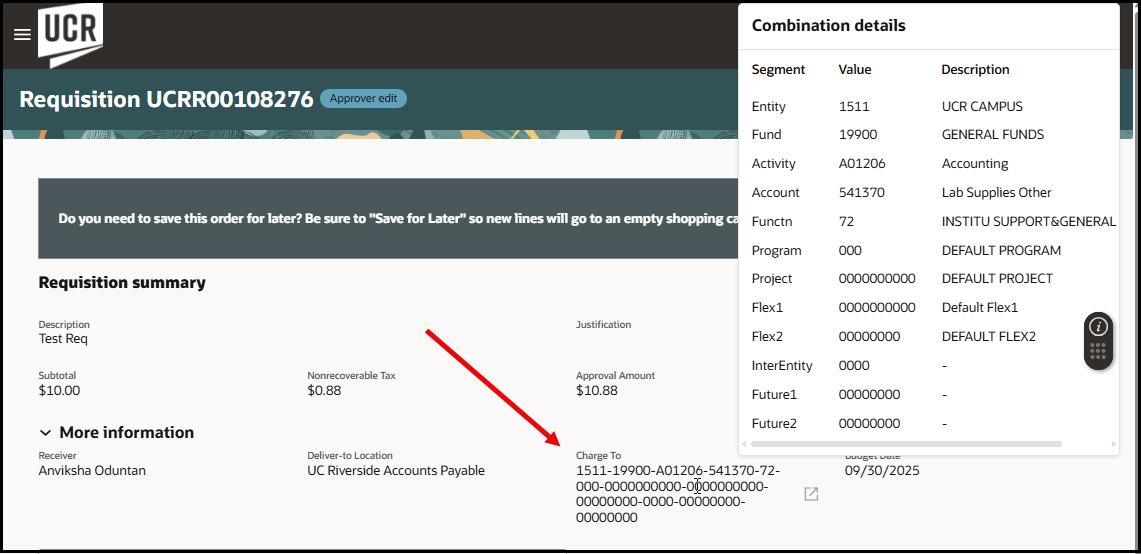
- Hover to see COA: Users can now see charge accounts segments, values, and descriptions by hovering over the COA Combination Details in the "More information" section of the requisition.
|
|
|---|
|
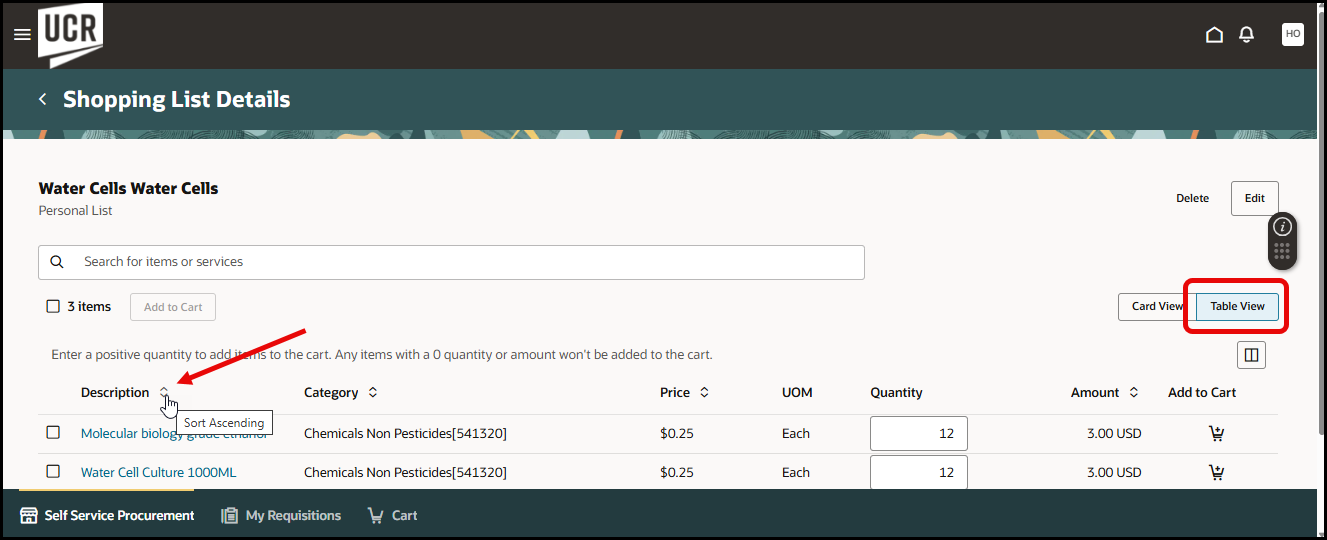
- Shopping List Column Sort: When viewing your shopping list, it is now possible to click the column header to sort the items in the list by that category.
|
|
|---|
|
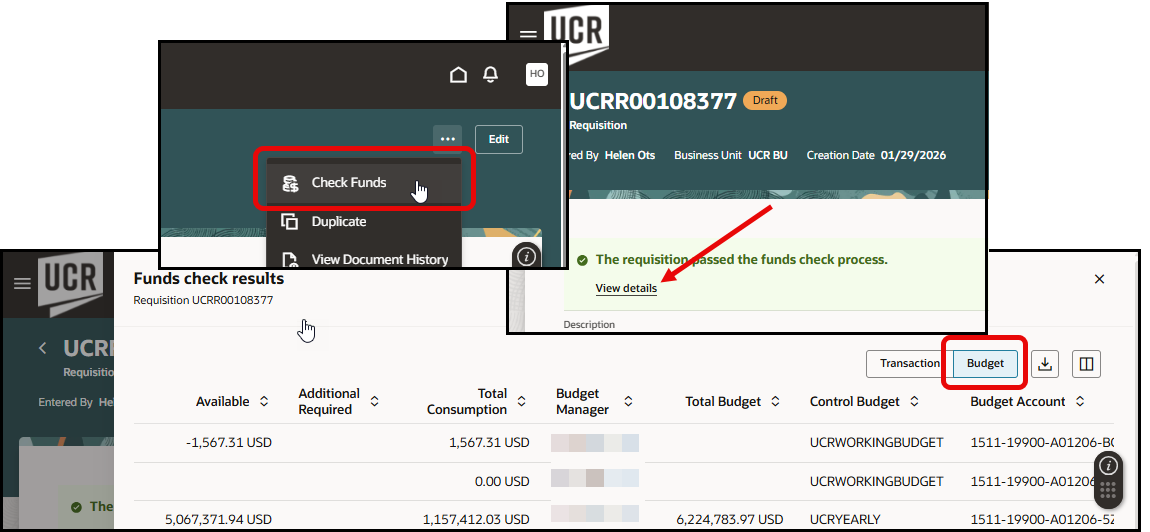
- View Budget Details with Funds Check: After clicking "Check Funds" it is now possible to view the budget level details.
|
|
|---|
|
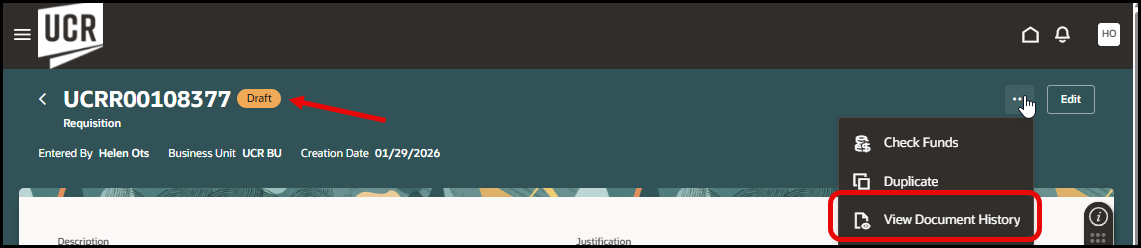
- Document History on Draft: You can now view document history on any requisition in Draft status.
|
|
|---|
|
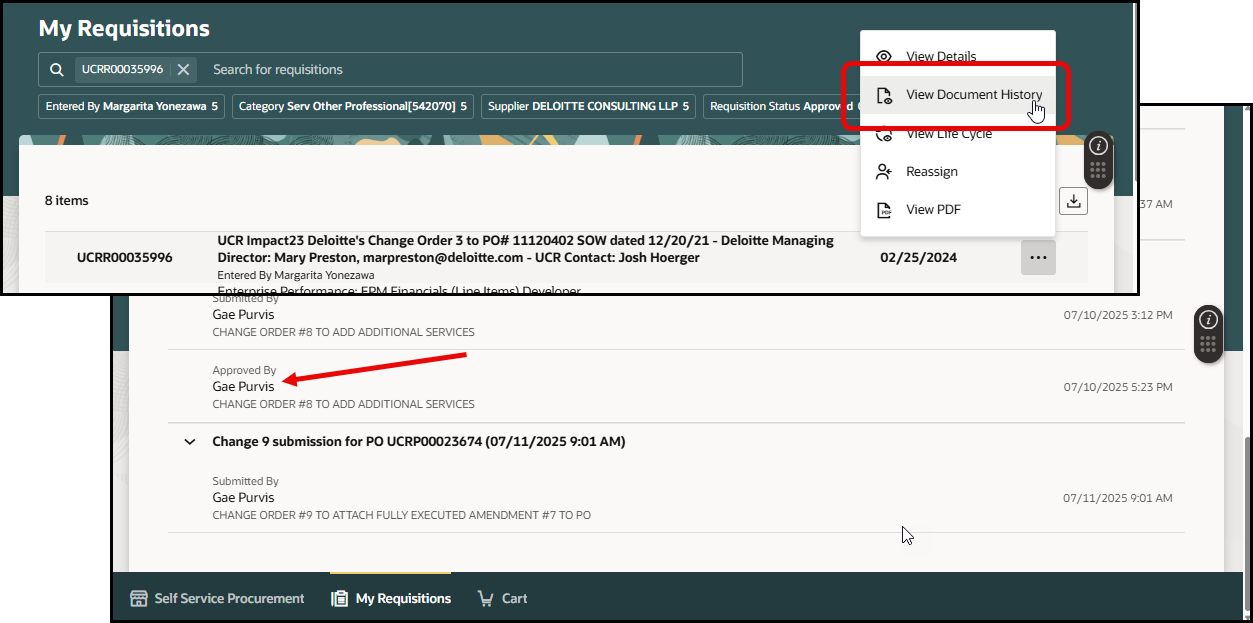
- View PO Approvers through Document History: PO Approval information is now accessible via document history from the requisition. This includes change order history as well. To view document history, click the additional menu (three dots) and select document history).
|
|
|---|
|
| |
|
| |
|
|